
Windows Server Explained: Uses, Features and Versions
Understanding Windows Server and Why It Matters
Note: This applies to Windows Server 2025, Windows Server 2022, Windows Server 2019, and Windows Server 2016.
Most people have heard the word "server" before. But not everyone knows what it actually does. Let's break it down in a simple way.
So What Is Windows Server?
Windows Server is an operating system made by Microsoft. It's built for businesses, not home users. Think of it like the brain behind a company's computer network. It helps manage users, store files, run apps, and keep everything connected.
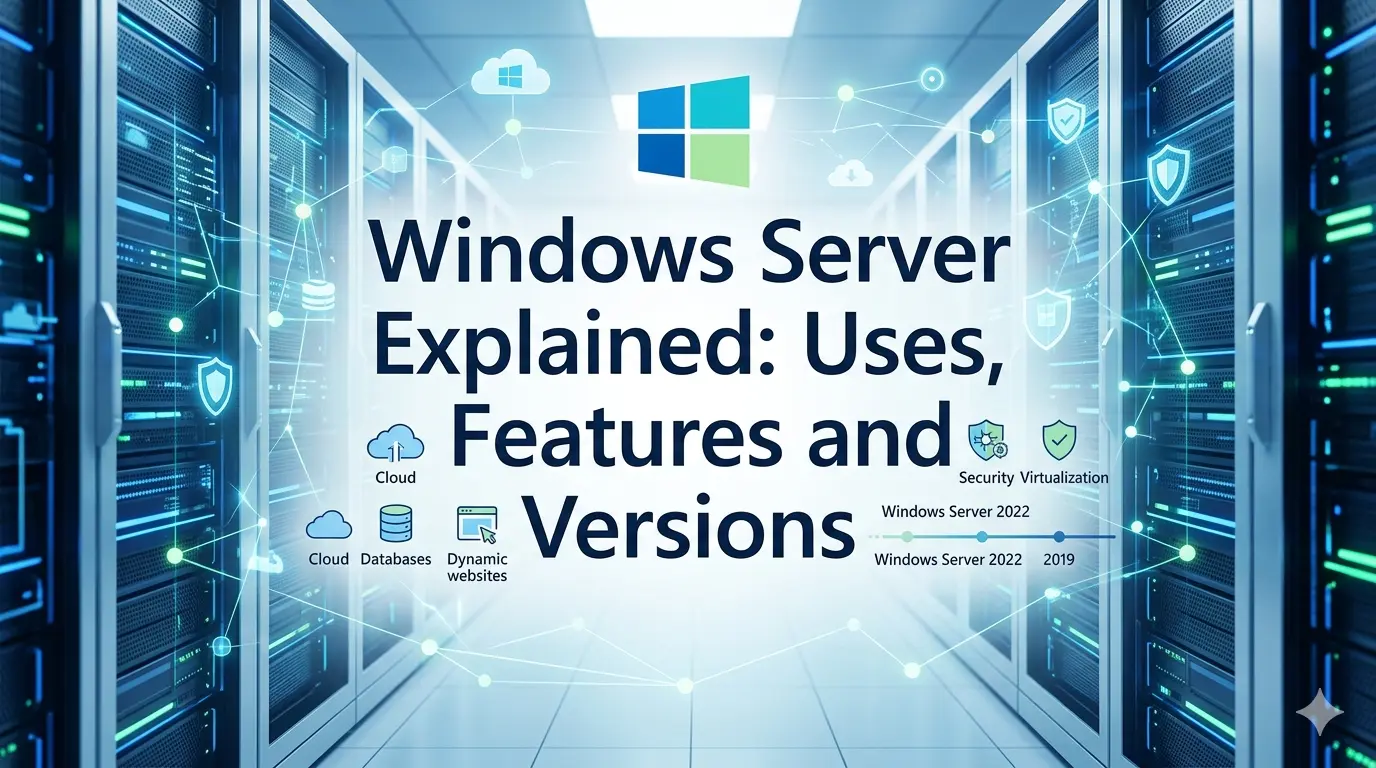
Microsoft has released many editions of windows server over the years. You've got Windows Server 2016, Windows Server 2019, and the newer Windows Server 2022, with Windows Server 2025 also entering the conversation. Each one came with better features and stronger security. The edition you pick depends on the size of your business and what you need it to do.
What Can Windows Server Actually Do?
Active Directory is one of the biggest ones. It lets IT teams manage who can log in, what files they can open, and what systems they can touch. Super useful when you have 50 or 500 employees.
Then there's Hyper-V. This is Microsoft's built-in tool for running virtual machines. Instead of buying five physical servers, you can run five virtual ones on a single machine. Saves money. Saves space.
Storage is another big area. Windows Server has tools to manage drives, set up shared folders, and even mirror data so you don't lose everything if a hard drive fails.
IIS, which stands for Internet Information Services, is what companies use to host websites and internal web apps. If your company has a web portal for employees, there's a good chance IIS is running it somewhere.
Where Do Businesses Use It?
In tons of places. Schools use windows server to manage student logins. Hospitals use it to keep patient records safe and accessible. Retail stores use it to run point of sale systems. Banks use it to manage users across hundreds of branches.
File sharing is probably the most common use. Instead of emailing documents back and forth, teams store everything in one place on the server. Everyone accesses the same file. No more "which version is the latest?" headaches.
Domain controllers are another big one. This is just a fancy name for a server that manages user logins across a whole network. When you log into your work laptop, a domain controller is quietly checking your username and password in the background.
How Do You Set It Up?
Installing Windows Server is not too different from installing a regular Windows PC. You boot from a USB or disc, go through the setup steps, and choose your edition whether it's windows server 2019, windows server 2022, or even preparing for windows server 2025 environments. The tricky part comes after.
Once it's installed, you need to assign it a static IP address. That means the server always has the same network address, so other computers can find it easily.
Then you add roles. Roles are like job titles for your server. You tell it "hey, you're going to be a file server" or "you're going to be a web server." You pick these inside Server Manager, which is the main dashboard you'll use to manage everything.
Setting up your first domain controller takes a bit of patience. But once it's done, managing users becomes so much easier.
Keeping It Secure
Security is where a lot of people drop the ball. Windows Server is only as safe as you make it.
- First thing, turn on Windows Firewall and set rules for what traffic is allowed in and out. Don't just leave it wide open.
- Patch management is huge. Microsoft releases security updates regularly. If you skip them, you're leaving doors open for attackers. Set up automatic updates or at least check monthly, especially when running versions like windows server 2022 or windows server 2019.
- User access control matters a lot too. Not everyone needs admin rights. Give people only the access they actually need to do their job. Nothing more.
Also, keep an eye on your event logs. Windows Server records almost everything that happens. If something goes wrong, the event viewer is usually the first place to look.
When Things Go Wrong
Things will break. That's just how it is. Common problems include slow performance, login failures, and services that stop running for no obvious reason. The event viewer is your best friend here. It shows you error codes and timestamps that help you figure out what went wrong.
Performance Monitor is another tool that shows you real time data on CPU, memory, and disk usage. If your server is crawling, this helps you find the bottleneck fast.
Get the Right Windows Server Solution Today
Make your server infrastructure more reliable, secure, and efficient with the right Windows Server solution.
Contact Us Today to discuss your requirements, explore available licensing options, and get expert assistance in choosing the right solution for your business
Copyright ©2026 Microsoft. All Rights Reserved